Use Git Worktree to Handle an Urgent Fix Without Stashing
Keep unfinished work open while fixing another branch. Learn Git worktree commands, shared repository behavior, setup limits, and safe cleanup.
In this piece
Why it matters
A second checkout can reduce interruptions, but shared services still need deliberate configuration.
Git worktree lets you open a second branch in a separate directory while leaving your current work exactly where it is. It is useful when an urgent fix or review interrupts a task with unfinished changes.
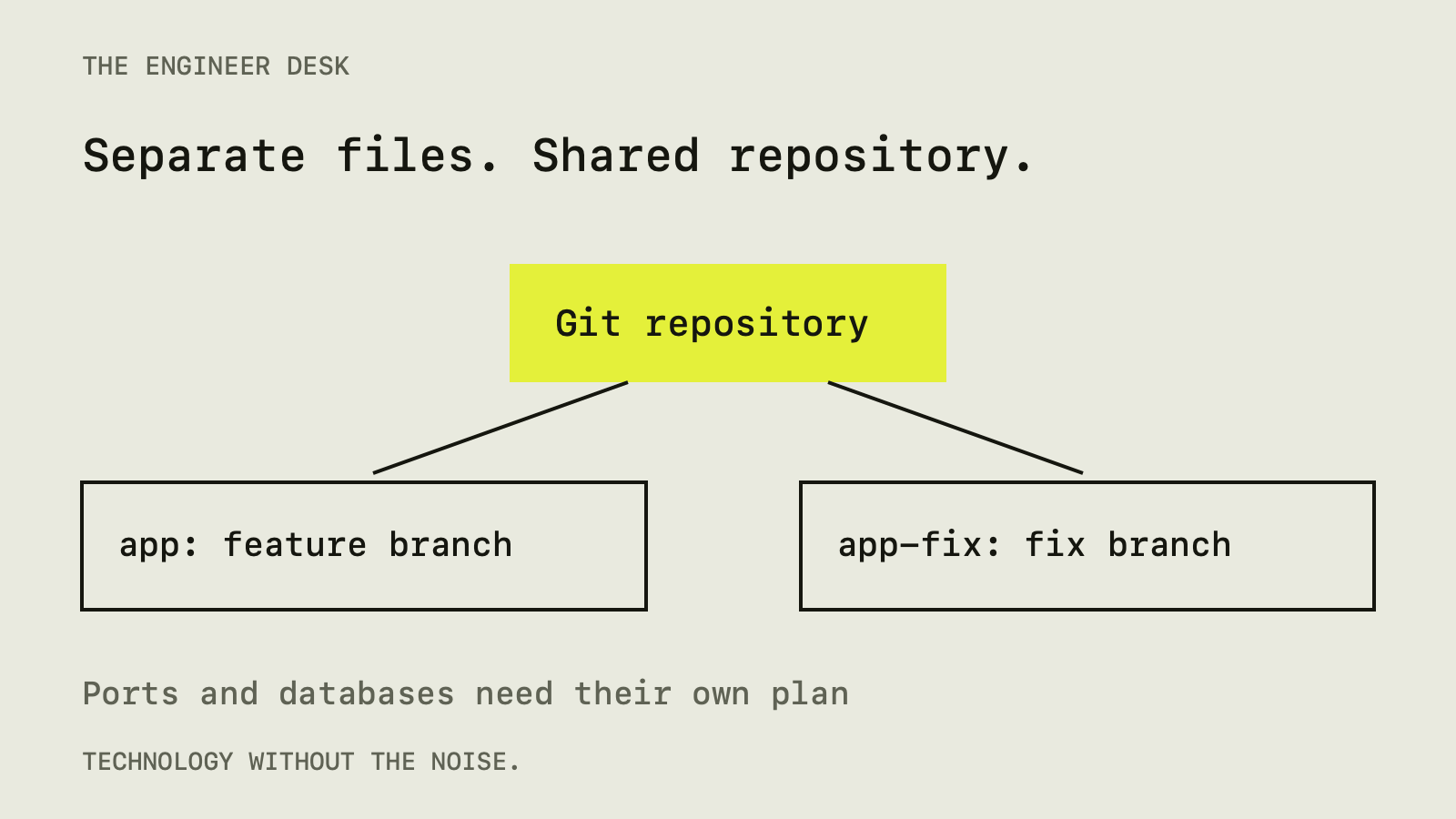
You do not need another full clone just to have two working directories. A linked worktree shares the repository's Git objects and ordinary branch references, while keeping its own checked-out files, index, and HEAD. That distinction explains both its convenience and its limits.
The interruption that worktrees solve
Imagine you are editing a feature in a directory named app. Several files have changed, and the development server is running. A teammate asks you to investigate a bug on main.
You could stash the changes, switch branches, investigate, switch back, and restore the stash. That is reasonable for a brief interruption. A worktree helps when you want both tasks available at once, especially if the investigation will take hours or require several visits.
The original directory can remain on the feature branch. A sibling directory can hold the bug fix. Each editor window shows the files for its own task.
Create a second working directory
The following is an illustrative workflow for an existing repository with a local main branch. Run it from that repository:
git status --short
git worktree list
git worktree add -b fix/date-label ../app-date-fix main
The last command creates a new branch named fix/date-label starting from your local main, then checks it out in ../app-date-fix. It does not fetch newer commits. If the task needs the remote's latest state, fetch and inspect that state first, then choose the appropriate starting reference.
Change into the new directory before doing the fix:
cd ../app-date-fix
git status --short --branch
Check the branch and path rather than relying on an editor window's appearance. Both working directories can look almost identical.
The official worktree manual documents creation, inspection, and removal. The examples here use established basic commands, but consult the manual installed with your Git version if an option behaves differently.
What is separate and what is shared?
| Item | Relationship between linked worktrees |
|---|---|
| Checked-out source files | Separate files in each directory |
| Staged changes | Separate index for each worktree |
| Current checkout | Separate HEAD for each worktree |
| Ordinary local branches | Shared repository references |
| Git object storage | Shared |
| Local development services | Depend on your application configuration |
A commit made in one worktree is available in the shared repository. It does not automatically replace the files checked out in another worktree. Normal Git operations still decide how branches incorporate that commit.
By default, Git prevents the same branch from being checked out in multiple worktrees. That protects against two working directories trying to maintain different views of the same branch. Create another branch for another task rather than forcing past that check.
Dependencies do not appear by magic
The new working directory contains tracked files from the chosen commit. Ignored files from the original directory, such as a local environment file or node_modules, are not automatically copied into it.
Use the project's documented setup process. For an npm project with a committed, matching lockfile, npm ci is often appropriate. The npm documentation describes its clean installation behavior. It can run dependency lifecycle scripts, so an unfamiliar repository still needs review before installation.
Avoid sharing a dependency directory casually. Two branches may need different dependency versions or generated files. Saving installation time can create confusing failures if both tasks write to the same location.
Give each running application a distinct port
Two source directories do not guarantee two independent applications. If both servers try to listen on the same port, one will fail or select a different port, depending on the tool.
Choose ports deliberately and label the browser tabs. Use whatever port option your framework documents. Check the actual startup output so you know which URL belongs to which branch.
Also inspect background workers. A second development server may start a scheduler or queue consumer. That can create duplicate work even when the web servers have different ports. Our webhook retry guide explains a related problem: multiple executions can act on the same event.
A worktree is not a separate database
If both environment files point to the same development database, both branches can read and modify the same data. Running a migration in the fix directory may affect the feature directory immediately.
Use a separate database or isolated schema when the task requires independent state. Where shared development data is intentional, coordinate schema changes and avoid running destructive setup commands from either directory.
The same reasoning applies to object storage, local caches, test accounts, and external sandboxes. File separation does not establish service separation. Write down which resources are shared before running integration tests that mutate data.
Review an existing branch without changing it
For inspection, you can create a detached worktree at an existing reference:
git worktree add --detach ../app-review main
Detached means the checkout is not attached to a branch. It is useful for reading or running a particular version. If you decide to keep commits from that directory, create a branch before treating it as ongoing work.
For a remote pull request, first obtain its reference through your team's normal review process. The worktree command does not discover the pull request or verify that its code is safe to execute.
Clean up through Git
When the fix has been committed and you no longer need the extra directory, return to a remaining worktree and remove it:
git worktree remove ../app-date-fix
git worktree list
Git normally refuses to remove a dirty working tree. Inspect the changes rather than reaching for a force option. Removal deletes the working directory; it does not delete the associated branch. Handle branch cleanup separately under your team's normal process.
If a directory was removed outside Git, git worktree prune --dry-run can show stale administrative entries. Read that output before pruning. A temporarily unavailable drive is a different situation from a directory you intentionally deleted.
When stashing is still enough
Use a stash when the interruption is short and you only need one environment. Use a worktree when keeping both checkouts available reduces confusion or avoids repeated setup. A full clone may be more suitable when you need repository-level separation.
Worktrees also help organize coding-agent tasks, but they are not a security sandbox. A process can still reach other accessible files and services. Pair the workflow with the permissions appropriate to the task.
The useful habit is simple: one task, one clearly named directory, one known branch, and an explicit understanding of shared services. Git handles the source files. You still have to handle the environment around them.
Sources
- git-worktree manual, Git project (git-scm.com)
- npm ci command reference, npm (docs.npmjs.com)
Spot an error? Tell us. See how we handle sources and corrections in our editorial standards.
Found this useful? Get The Weekly Desk, one concise email a week.