Workbench guide
How to Build an MCP Server in Python for Your AI Agent
Give your AI agent three real tools in about 60 lines of Python. Full code for MCP SDK v2, a test you can run, and the exact calls the agent made.

In this piece
What changed
The MCP Python SDK moved to v2 in 2026. FastMCP is now MCPServer, and v1 tutorials fail on the first import.
Why it matters
Most MCP tutorials still teach the v1 import, so beginners hit an error before they write a single tool.
To build an MCP server in Python, you write ordinary functions, mark each one with @mcp.tool(), and tell your AI app the command that starts the file. In this guide you build a small server with three tools that let an agent search your notes, read one, and add a task. It takes about 30 minutes, and the whole server is about 60 lines.
One warning before you start. The Python SDK moved to version 2 this year, and the main class changed its name. Most tutorials you will find still use the old name, so their first line fails. Everything here uses v2.
[FOUNDER: one or two sentences in your own words on why you wanted your agent to read your own notes, for example the moment you got tired of pasting the same file into chat.]
How an MCP server fits with your AI agent
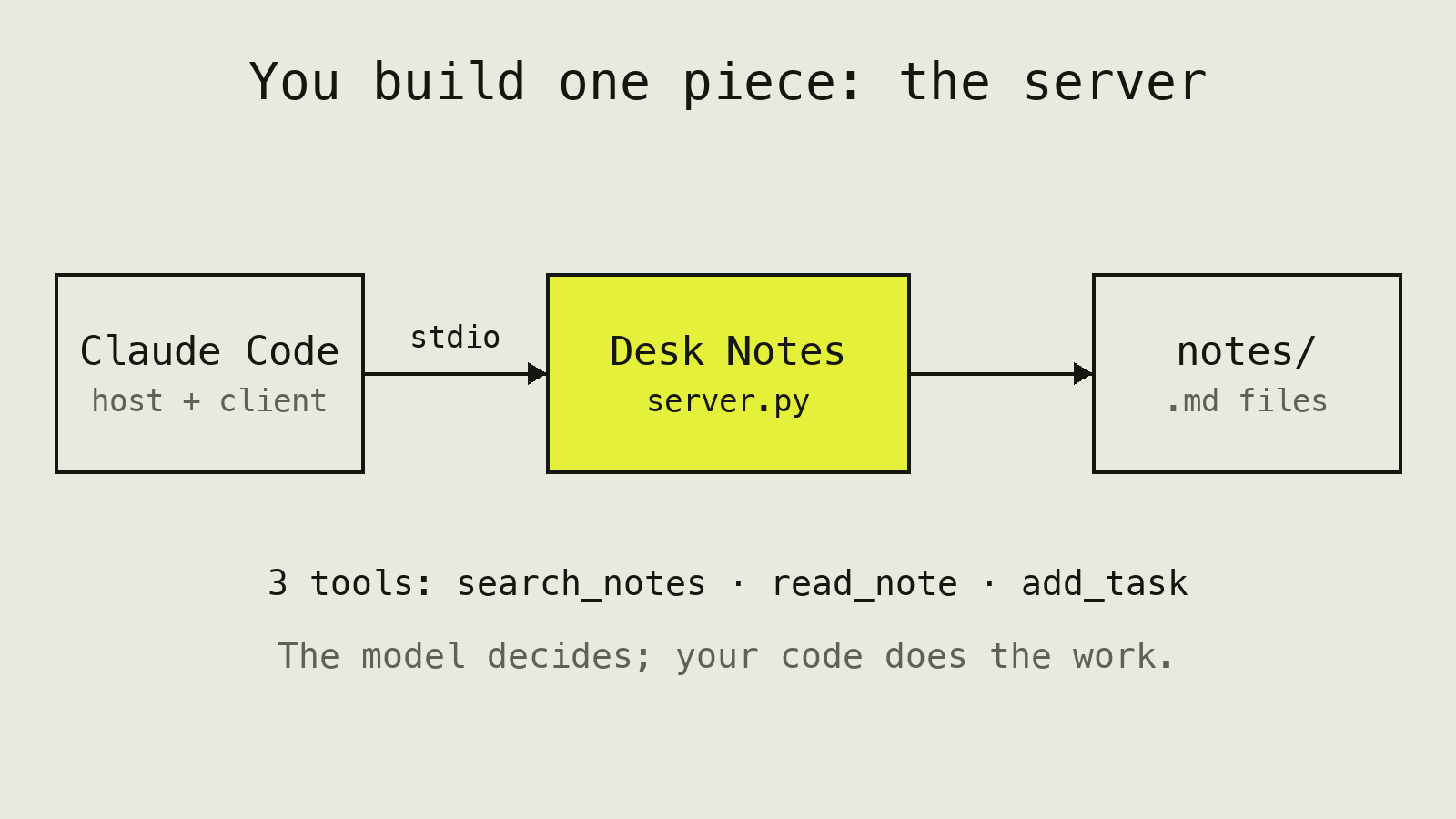
MCP (Model Context Protocol) is a standard way for an AI app to use tools that someone else wrote. Three parts are involved:
- The host is the app you talk to, such as Claude Code or Claude Desktop.
- The client lives inside the host and speaks MCP.
- The server is the part you write. It never talks to the model directly.
The model reads your tool names and descriptions, decides which one to call, and your Python does the work. That split is the whole idea.
What you need to build an MCP server in Python
| Tool | Cost | Why |
|---|---|---|
| Python 3.11 or newer | Free | The SDK requires 3.11+ |
| uv | Free | Runs the server with the SDK, no virtual environment to manage |
| mcp 2.3.0 (the Python SDK) | Free | Turns your functions into MCP tools |
| Claude Code | Needs a Claude plan | The agent that calls your tools. Any MCP host works. |
| A folder of Markdown notes | Free | What the agent will read. Sample notes are below. |
New to Claude Code? Start with How to Use Claude Code: A Simple Guide for Beginners, then come back.
Step 1: Make the project and some notes
Why: the agent needs something real to search. Two short notes are enough to see it work.
Make a folder with a notes folder inside it:
mkdir -p desk-notes/notes && cd desk-notes
Create notes/launch-plan.md:
# Launch plan

- Ship the pricing page on Tuesday.
- Ask Priya to review the onboarding email.
- Decision: we will not add a free tier until January.
Create notes/meeting-2026-11-20.md:
# Team meeting, November 20

- The signup bug is fixed in version 1.4.2.
- Pricing page copy still needs a final read.
- Next meeting: Thursday.
Then create an empty task list:
printf '# Tasks\n\n' > notes/tasks.md
What you should see: a notes folder with three .md files. Later, swap in your own notes.
Step 2: Write the server
Why: this file is the server. Each function becomes a tool, and its docstring becomes the description the model reads when it decides what to call.
Create server.py next to the notes folder:
"""Desk Notes: a small MCP server that lets an AI agent search and read
your Markdown notes and add tasks to one file. Built with the MCP Python SDK v2."""
import sys
from pathlib import Path

from mcp.server import MCPServer
from mcp.server.mcpserver.exceptions import ToolError

NOTES = Path(__file__).parent / "notes"
TASKS = NOTES / "tasks.md"

mcp = MCPServer(
    "Desk Notes",
    instructions="Search the notes before answering. Quote the file name you used.",
)


def log(message: str) -> None:
    # stdout is the protocol channel. Log to stderr, never print().
    print(message, file=sys.stderr, flush=True)


@mcp.tool()
def search_notes(query: str, limit: int = 10) -> list[dict[str, str]]:
    """Search every Markdown note for a word or phrase. Returns file, line number and text."""
    log(f"search_notes({query!r})")
    needle = query.lower()
    hits = []
    for path in sorted(NOTES.glob("*.md")):
        for number, line in enumerate(path.read_text().splitlines(), start=1):
            if needle in line.lower():
                hits.append({"file": path.name, "line": str(number), "text": line.strip()})
    return hits[:limit]


@mcp.tool()
def read_note(name: str) -> str:
    """Read one note by its file name, for example launch-plan.md."""
    log(f"read_note({name!r})")
    path = (NOTES / name).resolve()
    if path.parent != NOTES.resolve() or path.suffix != ".md":
        raise ToolError("Only .md files inside the notes folder can be read.")
    if not path.exists():
        raise ToolError(f"No note called {name!r}. Use search_notes to find one.")
    return path.read_text()


@mcp.tool()
def add_task(task: str) -> str:
    """Add one task to tasks.md. This is the only tool that writes anything."""
    log(f"add_task({task!r})")
    task = task.strip().replace("\n", " ")
    if not task:
        raise ToolError("The task is empty.")
    with TASKS.open("a") as file:
        file.write(f"- [ ] {task}\n")
    return f"Added to tasks.md: - [ ] {task}"


@mcp.resource("notes://index")
def index() -> str:
    """The file name of every note, one per line."""
    return "\n".join(path.name for path in sorted(NOTES.glob("*.md")))


if __name__ == "__main__":
    mcp.run()
Four lines do most of the work:
MCPServer("Desk Notes")creates the server. In v1 this wasFastMCP.@mcp.tool()turns a function into a tool. The type hints (query: str, limit: int = 10) become the input schema, so you never write JSON Schema by hand.read_notechecks the path. Without that check, the agent could ask for../.envand read a file you never meant to share.mcp.run()with no arguments starts a stdio server, which is what Claude Code and Claude Desktop expect.
I kept the tools small on purpose. Two read and one writes, and the one that writes can only touch one file. If you want the reasoning behind that, read How Much Access Should an AI Coding Agent Have?
Step 3: Test it without any AI
Why: if a tool is broken, you want to know before a model is involved. The SDK can connect a client straight to your server object, with no process and no port.
Create test_server.py:
"""Test the server in memory: no subprocess, no port, no AI model."""
import anyio
from mcp import Client

from server import mcp


async def main() -> None:
    async with Client(mcp) as client:
        tools = await client.list_tools()
        print("Tools:", [tool.name for tool in tools.tools])

        result = await client.call_tool("search_notes", {"query": "pricing"})
        print("search_notes:", result.structured_content)

        result = await client.call_tool("read_note", {"name": "../server.py"})
        print("read_note outside the folder -> is_error:", result.is_error)
        print("  ", result.content[0].text)


anyio.run(main)
Run it:
uv run --with "mcp[cli]==2.3.0" python test_server.py
What you should see (copied from my run, with the log lines removed):
Tools: ['search_notes', 'read_note', 'add_task']
search_notes: {'result': [{'file': 'launch-plan.md', 'line': '3', 'text': '- Ship the pricing page on Tuesday.'}, {'file': 'meeting-2026-11-20.md', 'line': '4', 'text': '- Pricing page copy still needs a final read.'}]}
read_note outside the folder -> is_error: True
   Error executing tool read_note: Only .md files inside the notes folder can be read.
The last line matters most. The path check works, and the error goes back to the agent as a normal tool error instead of crashing the server.
If you prefer clicking to code, the SDK also has a visual tester, the MCP Inspector: uv run --with "mcp[cli]" mcp dev server.py. [FOUNDER: add a screenshot of the Inspector's Tools tab if you use it.]
Step 4: Connect it to Claude Code
Why: this is the moment the server becomes part of an agent. You give Claude Code the command that starts your file. Everything after the double dash is that command.
Use the full path to your server.py:
claude mcp add desk-notes -- uv run --with "mcp[cli]==2.3.0" mcp run /full/path/to/desk-notes/server.py
Start Claude Code and type /mcp. What you should see: desk-notes in the list as connected, with three tools.
Using Claude Desktop instead? Run uv run --with "mcp[cli]" mcp install server.py, then fully quit and reopen Claude Desktop. That command writes the config file for you, with absolute paths.
Step 5: Give the agent a real task
Why: a tool only proves itself when the model has to pick it on its own. Ask a question that needs a search, a read and a write.
ROLE: You are my project assistant. You only state what my notes say.

CONTEXT: My notes are available through the desk-notes tools. I want to know what is still open on one topic and keep a task for it.

MY INPUT:
- Topic: [THE TOPIC, FOR EXAMPLE: THE PRICING PAGE]

STEPS:
1. Search my notes for the topic.
2. Read every note that mentions it.
3. Tell me what is still open, with the file name for each point.
4. Add exactly one task for the most urgent open item.

OUTPUT: 2 to 4 bullet points, each ending with the file name in brackets, then the task you added.

RULES:
- Use only the desk-notes tools. Do not guess anything that is not in a note.
- If the notes disagree or nothing matches, say so and do not add a task.
What you should get
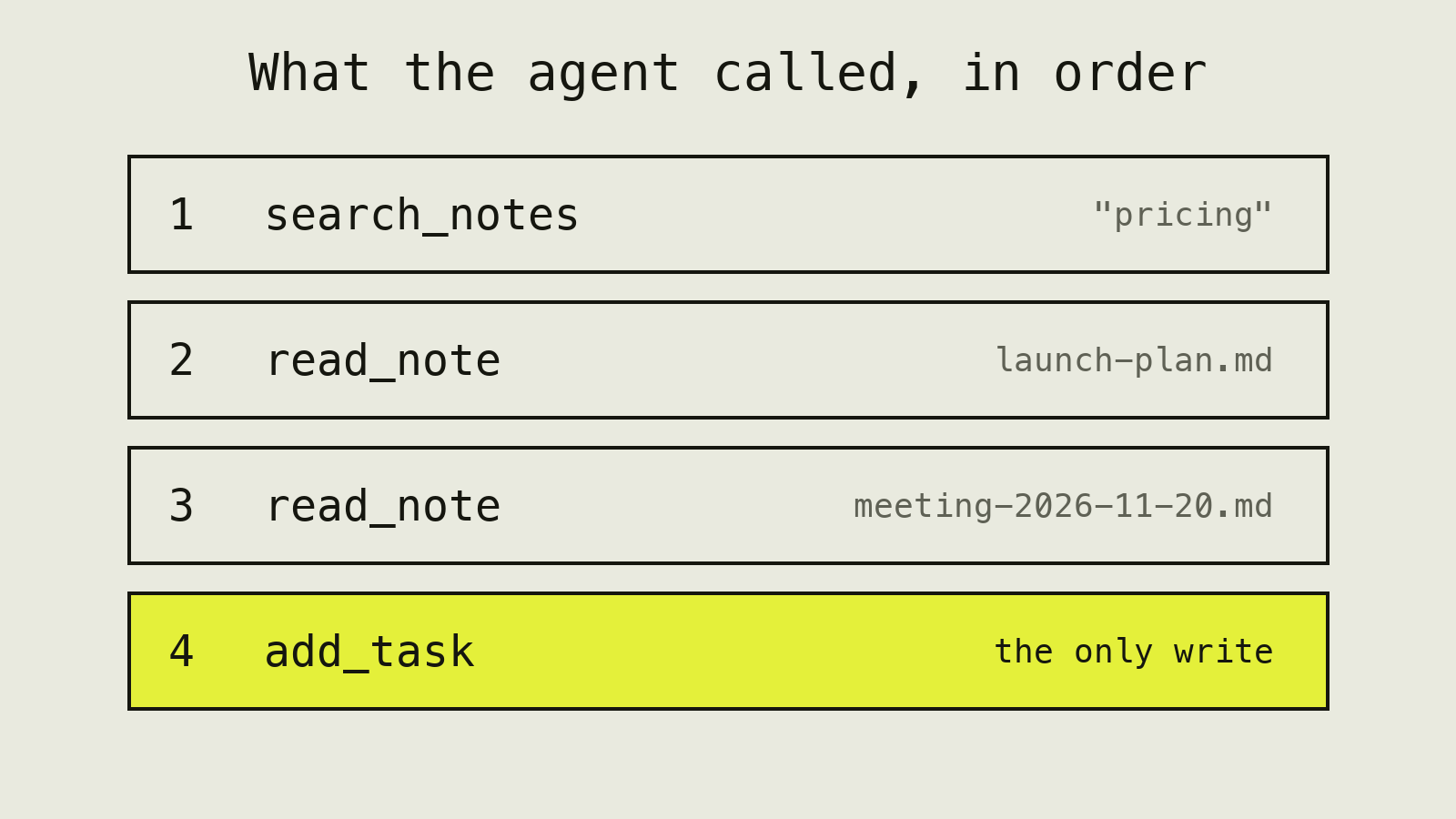
I ran a shorter version of that request through Claude Code with only these three tools allowed. The agent made four calls, in this order, and finished in about 11 seconds:
Its answer, with punctuation lightly edited (one dash became a full stop, and code formatting around the file names was removed):
What's open on the pricing page: it's slated to ship Tuesday (launch-plan.md), but the copy still needs a final read (meeting-2026-11-20.md). No free tier is planned until January, so that's not a blocker.

I added a task: "Finish final read of pricing page copy before shipping on Tuesday."
And notes/tasks.md now holds one new line:
- [ ] Finish final read of pricing page copy before shipping on Tuesday
Two details are worth noticing. The agent searched first, then read both files before it answered, because the tool descriptions and the server's instructions told it how. And it combined two notes into one answer, which is the real value: you did not have to know which file held what.
[FOUNDER: paste your own agent's answer here after your run, and say whether it called the tools in the same order.]
The one mistake: print() in a stdio server
Over stdio, your server's standard output is the wire. Every message the host reads must be valid JSON. One stray print() puts plain text on that wire.
I added print(f"searching for {query}") to search_notes and called it through a real stdio client. The client logged this:
Failed to parse JSONRPC message from server
pydantic_core._pydantic_core.ValidationError: 1 validation error for union[JSONRPCRequest,JSONRPCNotification,JSONRPCResponse,JSONRPCError]
  Invalid JSON: expected value at line 1 column 1 [type=json_invalid, input_value='searching for pricing', input_type=str]
The surprise: in this run the SDK client skipped the bad line and still returned the right result. So the mistake can hide. A different host may handle it less kindly, and the noise lands in your logs every call.
The fix is the log() helper in Step 2. It writes to sys.stderr, which the host keeps separate from the protocol.
The other mistake: copying a v1 tutorial
If a tutorial starts with from mcp.server.fastmcp import FastMCP, it was written for v1. On mcp 2.3.0 that line fails:
ModuleNotFoundError: No module named 'mcp.server.fastmcp'. This is mcp 2.x, where FastMCP was renamed to MCPServer (from mcp.server.mcpserver import MCPServer) and other APIs changed
You have two choices. Change the import to from mcp.server import MCPServer and rename FastMCP(...) to MCPServer(...); for a simple decorator-based server, that is most of the port. Or pin the old version with mcp<2 until you have time. The migration guide lists every other change.
Add your next tool with AI
Once the pattern clicks, you will want more tools. This prompt drafts one in the same style. Paste it into any chat AI along with your current server.py.
ROLE: You are a careful Python developer who writes small MCP tools with the MCP Python SDK v2.

CONTEXT: I have a working MCP server. I want one new tool that follows the same style and safety rules as my existing tools.

MY INPUT:
- My current server.py: [PASTE YOUR SERVER.PY HERE]
- The new tool: [ONE LINE, FOR EXAMPLE: LIST NOTES CHANGED IN THE LAST 7 DAYS]

STEPS:
1. Write one function decorated with @mcp.tool(), with type hints and a one-line docstring that says exactly what it returns.
2. Use `from mcp.server import MCPServer` style (v2). Never use mcp.server.fastmcp.
3. Raise ToolError for bad input instead of returning an error string.
4. Keep file access inside the existing NOTES folder. Log with the existing log() helper, never print().
5. Write one test call I can add to test_server.py.

OUTPUT: the new function, the test lines, and one sentence on what the tool can and cannot touch.

RULES:
- Read-only unless I asked for a write. If my request needs a write, say so before writing the code.
- If my request is unclear, ask me one question before you write anything.
Then run test_server.py again before you trust the new tool.
Frequently asked questions
Is FastMCP the same as MCPServer?
Yes, for the official SDK. In v2, the class FastMCP was renamed MCPServer and moved to from mcp.server import MCPServer. A separate package called fastmcp also exists; it is a different project with its own import (from fastmcp import FastMCP).
Do I need an API key to build an MCP server?
No. The server is plain Python and needs no key. The host that calls it, such as Claude Code, uses your normal Claude plan. The in-memory test in Step 3 needs no AI at all.
Should I use stdio or HTTP?
Use stdio when the server runs on your own computer for your own agent, as in this guide. Use Streamable HTTP when other people need to reach it by URL. The SDK serves the same mcp object either way: uv run mcp run server.py --transport streamable-http.
How do I remove the server from Claude Code?
Run claude mcp remove desk-notes. Your files stay where they are.
Is it safe to let an agent write files?
Only as much as the tool allows. Here, add_task can append one line to one file, and read_note refuses paths outside the notes folder. Give each tool the smallest job you can, and test the refusals, not only the happy path.
Next step
Swap the sample notes for a real folder you use every week, run the test, and ask your agent one question you would normally answer by searching yourself. If you build agents that use a browser too, Give Your AI Agent a Browser With Kitesurf is the next tool to add.
Sources
- MCP Python SDK: What's new in v2, Model Context Protocol (py.sdk.modelcontextprotocol.io)
- MCP Python SDK: Connect to a real host, Model Context Protocol (py.sdk.modelcontextprotocol.io)
- MCP Python SDK: First steps, Model Context Protocol (py.sdk.modelcontextprotocol.io)
- MCP Python SDK: Installation, Model Context Protocol (py.sdk.modelcontextprotocol.io)
- Migration Guide: v1 to v2, Model Context Protocol (py.sdk.modelcontextprotocol.io)
- mcp on PyPI, Python Package Index (pypi.org)
Spot an error? Tell us. See how we handle sources and corrections in our editorial standards.
Found this useful? Get The Weekly Desk, one concise email a week.