Workbench guide
n8n Invoice Processing: From Email to Sheets, With a Human Check
Turn invoice emails into Google Sheets rows with n8n and an AI model. Code checks the math, and anything doubtful goes to a Review tab for a person.

In this piece
Why it matters
Most invoice automations trust whatever the AI reads. This one checks the math in code and sends every doubtful invoice to a person before it reaches your books.
This guide builds n8n invoice processing that reads PDF invoices from your Gmail, pulls out the fields with an AI model, and adds a row to Google Sheets. Before any row lands, plain code checks the math, the PO number and duplicates. Anything doubtful goes to a Review tab for a person.
It takes about an hour if you already use Gmail and Google Sheets. You do not need to write code. Everything you need is free to copy: the prompt, the check code, the workflow file and seven fictional test invoices.
Invoice processing is one of those repetitive tasks that looks simple until the volume grows or a single number gets entered incorrectly. I wanted to explore how much of this work could be automated with n8n and AI, while keeping a human in the loop to catch mistakes before they reach the spreadsheet.
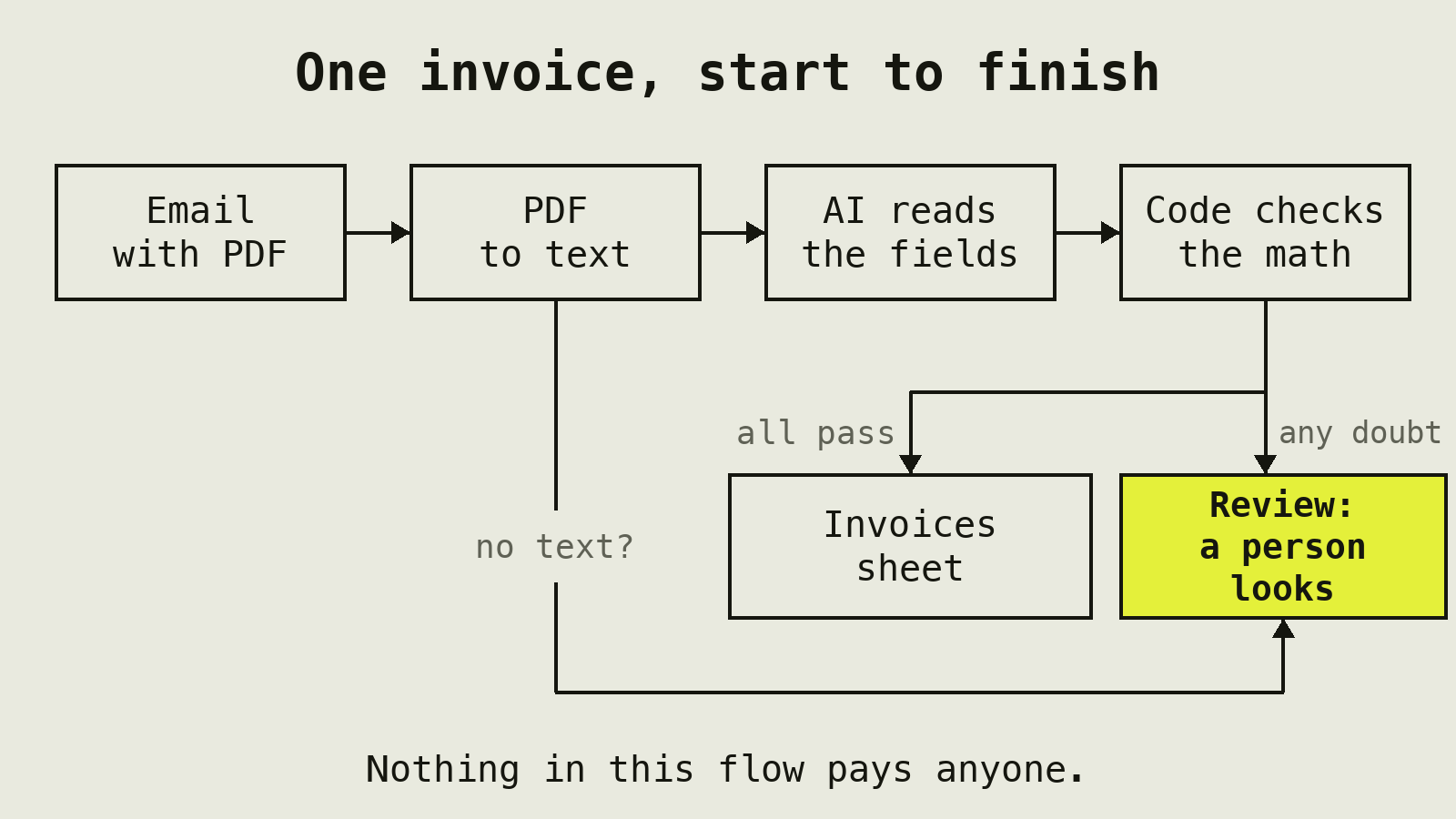
What this n8n invoice processing workflow does
Here is the whole idea in one line: the AI does the typing, code does the checking, and a person does the deciding.
The workflow has five jobs:
- Watch a Gmail label called
invoicesfor new emails with a PDF. - Turn the PDF into text.
- Ask an AI model to read the fields: vendor, invoice number, dates, PO number, amounts and line items.
- Check the result with code that cannot be talked into anything.
- Add the row to an Invoices tab, or to a Review tab with the reason.
It never pays anyone. It never emails a vendor. That is on purpose. Paying a bill is a decision, and this guide keeps decisions with people.
What you need
| Tool | Cost | Why |
|---|---|---|
| n8n Cloud Starter, or n8n on your own server | 20 euros a month billed annually, or free software plus your server | Runs the workflow |
| Gmail | Free | Where invoices arrive |
| Google Sheets | Free | Where the rows go |
| An AI model | Pay per use (Gateway credits on Cloud, or your own API key) | Reads the invoice |
| The free kit from this guide | Free | Prompt, check code, workflow file, test invoices |
On [1], Starter includes 2,500 workflow executions a month. One invoice email is one execution, so that covers a small business with room to spare. Starter also includes [2], which let you use an AI model without creating an API key. Gateway credits are not available on self-hosted n8n.
If you have never run a server, start with Cloud. n8n's own [13] says self-hosting is for experienced users.
Get the kit: [FOUNDER: add the download link once the zip is hosted, for example /downloads/workbench/n8n-invoice-kit.zip.] It contains:
n8n-invoice-workflow.json, the workflow you importextraction-prompt.txtandinvoice-schema.json, what the AI reads withvalidate.js, the check code, which runs on its own toosample-invoices/, seven fictional invoices, plusanswer-key.jsoncompare_extraction.js, which scores the AI against the answer keysheet-columns.csv, the header row for both tabs
Step 1: Make the Gmail label
Why: the workflow should only see invoices, not your whole inbox.
Do this: in Gmail, create a label called invoices. Then make a filter that adds it. A good start is emails from your vendors, or emails with "invoice" in the subject and a PDF attached.
The trigger uses this Gmail search: label:invoices has:attachment filename:pdf. All three parts are standard [4].
You should see: your last few invoice emails under the new label.
Step 2: Make the sheet with two tabs
Why: the Review tab is the human check. It is the most important part of this build.
Do this: create a Google Sheet with two tabs named exactly Invoices and Review. Paste this header row into row 1 of both tabs:
received_at,status,reasons,vendor,invoice_number,invoice_date,due_date,po_number,currency,subtotal,tax,total,line_items,email_from,email_subject
The Sheets nodes use automatic mapping. That only works when the field names match the column headers exactly, as the [9] explain. So copy the row; do not retype it.
You should see: two tabs with the same 15 headers.
Step 3: Test the prompt by hand first
Why: if the AI cannot read your invoices in a chat window, it will not read them in a workflow either. This costs five minutes and saves an evening.
Do this: open one of your real invoices, copy its text, and paste it into ChatGPT, Claude or Gemini with this prompt.
ROLE: You are a careful bookkeeper who copies invoices exactly and never guesses.

CONTEXT: I am testing whether AI can read my supplier invoices before I automate it. I will compare your answer with the invoice myself.

MY INPUT:
- Invoice text: [PASTE THE TEXT OF ONE INVOICE HERE]
- My purchase order format: [DESCRIBE IT, FOR EXAMPLE "PO- followed by 4 digits", OR WRITE "none"]

STEPS:
1. Read the invoice and find each field in the output list.
2. Copy numbers exactly as printed. If the vendor's math looks wrong, copy it anyway and say so in a note.
3. Check your own work: every number you return must appear on the invoice.

OUTPUT: one JSON object with these fields: vendor, invoice_number, invoice_date, due_date, po_number, currency, subtotal, tax, total, line_items (description, quantity, unit_price, amount), unclear_fields. Then one line starting "Note:" if anything looked wrong.

RULES:
- Dates as YYYY-MM-DD. If a date like 03/11/2026 could be day-first or month-first, return null and list it in unclear_fields.
- po_number is only a number labeled as a purchase order. Never use the invoice number as the PO.
- total is the final amount due, not the subtotal.
- If something is missing or unclear, return null for it instead of guessing.
You should see: JSON where every value matches the paper. If the AI fills in a PO number your invoice does not have, you have just found the mistake this whole guide is built around.
We have not run this prompt across models yet. [FOUNDER: run it on 3 of your invoices and write one line on what came back.]
Step 4: Import the workflow
Why: building 12 nodes by hand is slow and easy to get wrong.
Do this: in n8n, create a new workflow, open the menu, and choose import from file. Pick n8n-invoice-workflow.json. Then connect three things:
- New invoice email: choose your Google account.
- AI model: choose Gateway credits or your own key, then pick a small, low-cost model. The temperature is already 0, so it answers the same way each time.
- Add to Invoices sheet and Add to Review sheet: choose your Google account and paste your sheet's URL.
You should see: no red warning triangles on any node.
Here is what each node does, left to right:
| Node | What it does |
|---|---|
| New invoice email | Checks the invoices label every 15 minutes and downloads attachments |
| Is it a PDF? | Skips emails whose first attachment is not a PDF |
| PDF to text | [5] turns the PDF into text |
| Has text? | Sends scanned PDFs with no text straight to Review |
| Read the invoice (AI) | The [6] fills a strict JSON Schema |
| Check the invoice | Our check code, explained in Step 5 |
| Passed every check? | Routes to Invoices or Review |
The workflow reads only the first attachment of each email. If a vendor sends two invoices in one email, the second one is skipped, so ask vendors for one invoice per email.
The trigger reads up to 10 emails per poll by default, according to the [3]. Extra emails wait for the next poll.
Step 5: Set the checks for your business
Why: the AI can be wrong in a confident voice. Code is boring and does not care how confident anything sounds. That is the point.
Do this: open the Check the invoice node. At the top you will find five settings:
const SETTINGS = {
  homeCurrency: 'USD',     // anything else goes to review
  requirePO: true,         // invoices without a purchase order number go to review
  poPattern: /^PO-\d{4}$/, // the shape of YOUR purchase order numbers; set to null to skip
  reviewAbove: 2000,       // totals above this always get a human look
  cents: 0.01,             // rounding we accept when adding things up
  minTextLength: 40,       // less text than this means a scanned PDF with no text layer
};
Change three of them to match your business: your currency, the shape of your PO numbers, and the amount above which you always want to look. Leave the last two alone.
Then the code checks each invoice for these problems:
- A required field is missing, or the AI listed it as unclear.
- Subtotal plus tax does not equal the total.
- Line items do not add up to the subtotal, or quantity times price does not match a line.
- No PO number, or one that does not look like yours.
- A foreign currency, a total over your limit, or a total of zero or less.
- A due date before the invoice date.
- The same vendor and invoice number seen before.
The code uses no extra packages, which matters because n8n Cloud [7] in the Code node.
You should see: the settings changed and nothing else touched.
Step 6: Run the seven test invoices
Why: you want to see the checks fail on purpose before a real invoice depends on them.
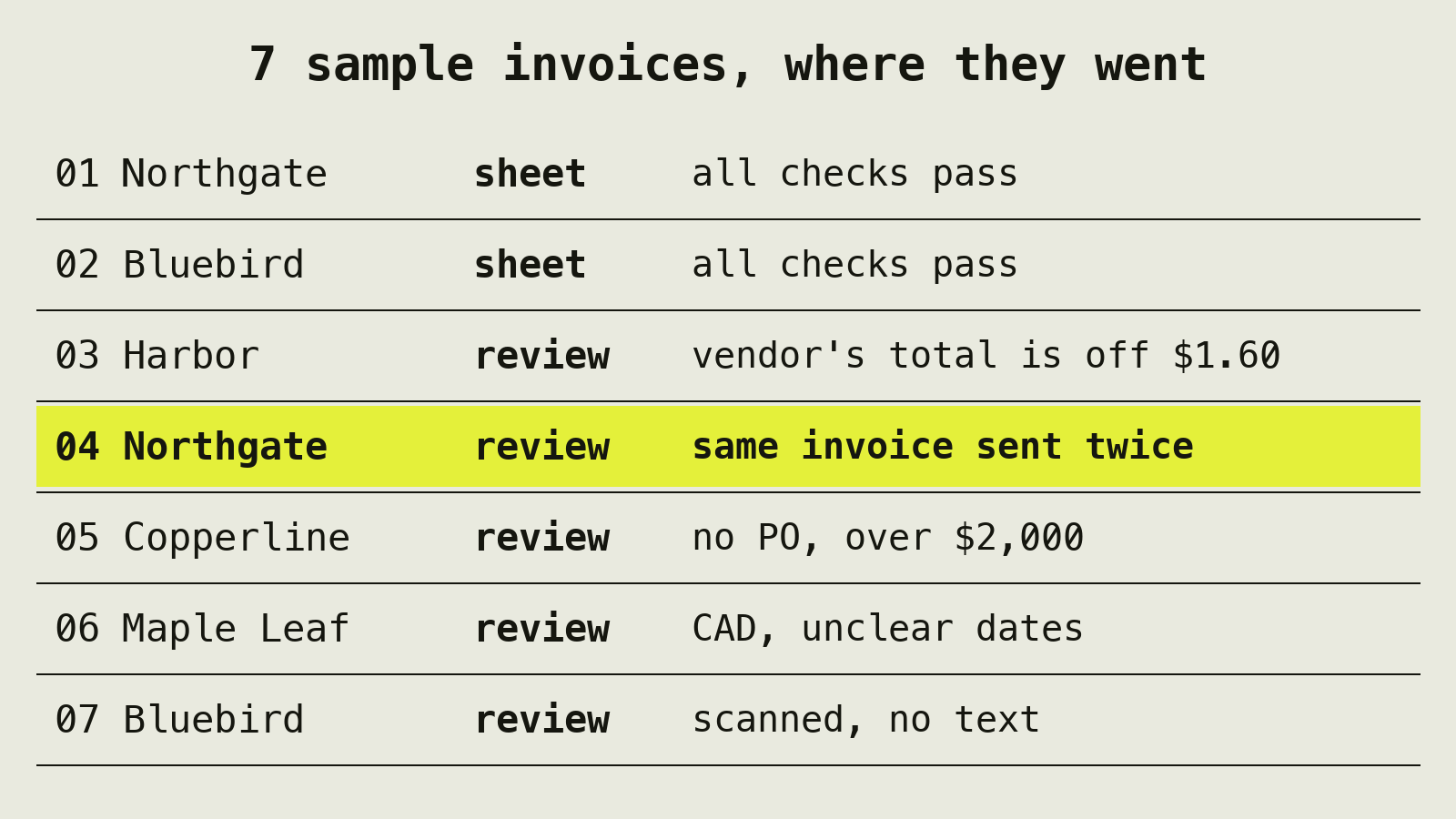
Do this: email the seven PDFs from sample-invoices/ to yourself, one per email, and add the invoices label. Each one tests something:
| File | What it tests |
|---|---|
| 01 Northgate, 02 Bluebird | Clean invoices that should pass |
| 03 Harbor | The vendor's own total is off by $1.60 |
| 04 Northgate again | The same invoice sent twice |
| 05 Copperline | No PO number and a total over $2,000 |
| 06 Maple Leaf | Canadian dollars and dates like 03/11/2026 |
| 07 Bluebird scanned | An image of an invoice with no text inside |
All seven are fictional. We made them for this guide.
What you should get
We ran the check code on the answer key, which is exactly what each PDF says. This is the real output from node validate.js answer-key.json:
SHEET   01-northgate-paper.pdf
SHEET   02-bluebird-cleaning.pdf
REVIEW  03-harbor-print.pdf  -> subtotal 640.00 + tax 52.80 = 692.80, but total says 694.40
REVIEW  04-northgate-paper-resent.pdf  -> duplicate: this vendor and invoice number were already processed
REVIEW  05-copperline-it.pdf  -> no PO number; total is over 2000
REVIEW  06-maple-leaf-supply.pdf  -> missing invoice_date; AI was unsure about invoice_date; AI was unsure about due_date; currency is CAD
REVIEW  07-bluebird-cleaning-scanned.pdf  -> no readable text in the PDF (scanned image?)
Two rows reach the Invoices tab. Five reach Review, each with a reason a person can act on in seconds.
We also checked the PDFs themselves with Apple's PDFKit. The six text PDFs held between 497 and 548 characters of text. The scanned copy held 0. n8n uses its own PDF reader, so your numbers may differ slightly, but a scanned image will still come back empty.
[FOUNDER: after your own run in n8n, paste a screenshot of the Review tab here, cropped to 1600 wide with no private data, and say what the AI got right and wrong.]
Step 7: Score the AI before you trust it
Why: passing the checks is not the same as being right. A wrong number can still add up.
Do this: after your test run, copy the extracted fields into a file shaped like answer-key.json. Then run:
node compare_extraction.js my-extraction.json
It compares 9 fields on each of the six readable invoices and prints a score. To show what a report looks like, we typed three mistakes into demo-bad-extraction.json by hand. It is not a model's output. Here is the real report:
WRONG  01-northgate-paper.pdf
        total: expected 446.53, got 412.5
RIGHT  02-bluebird-cleaning.pdf
RIGHT  03-harbor-print.pdf
RIGHT  04-northgate-paper-resent.pdf
WRONG  05-copperline-it.pdf
        po_number: expected null, got "7731"
WRONG  06-maple-leaf-supply.pdf
        invoice_date: expected null, got "2026-03-11"
        due_date: expected null, got "2026-03-12"

50 of 54 fields right (92.6%)
My rule: do not switch the workflow on for real until it scores 54 of 54 on the samples and the same on five of your own invoices. [FOUNDER: keep or change this rule in your own words.]
Step 8: Publish it and read the Review tab daily
Why: the duplicate check remembers past invoices with n8n's workflow static data. The [8] say it is not saved during test runs. The workflow must be published and started by its trigger.
Do this: publish the workflow. Then make one habit: open the Review tab once a day, fix or reject each row, and move the good ones to Invoices.
You should see: new invoices appear within 15 minutes of arriving.
The one mistake: checks that only check math
Look again at mistake 05 in the demo. The AI copied the invoice number, 7731, into the PO field. The total still added up. A math-only check would have waved it through.
Our first version of the check code had exactly that gap. It only asked "is there a PO number?" We added poPattern so the code also asks "does this look like one of our PO numbers?" On the demo file, that turned a silent error into a Review row:
REVIEW 05-copperline-it.pdf -> PO number "7731" does not look like one of ours; total is over 2000
So check meaning, not only arithmetic. Your PO format, your vendor list and your currency are facts the AI cannot know, which makes them the best checks you have.
[FOUNDER: add the first thing that broke in your own n8n run, in one or two sentences.]
What it costs per invoice
On Starter, each invoice email is one execution out of 2,500 a month. The AI part depends on the model and the length of your invoices, so we are not quoting a number. Run your seven samples, then check the spend on your Gateway credits page or your provider's dashboard.
Count retries and the minutes a person spends on the Review tab too. Our cost per successful task guide shows how to add those up.
Variations
- Invoices arrive in Google Drive, not email: swap the Gmail trigger for a Google Drive trigger on one folder. Everything after "PDF to text" stays the same.
- Excel instead of Sheets: the [11] works with workbooks in OneDrive. Keep the same two-tab idea.
- Approval by email: the Gmail node can [12] before the workflow continues. That suits the Review step for bigger teams.
- Scanned invoices are common for you: add an OCR step before "Has text?" Test it on the scanned sample first.
- Your accounting tool: wait until the Review habit works for a month before sending rows anywhere that pays bills.
Frequently asked questions
Can n8n read scanned invoices?
Not with this workflow as it is. The PDF to text step reads the text layer inside a PDF. A scanned invoice is only a picture, so it returns no text and goes to Review. Add an OCR service if you get many scans.
Do I need an OpenAI or Anthropic API key?
Not on n8n Cloud Starter or Pro. There, [2] pay for the model from a prepaid balance. On self-hosted n8n, you need your own key.
Why does every invoice show as new when I test?
The duplicate check saves its memory only in published runs started by the trigger, per n8n's [8]. Test runs do not save it. Publish the workflow, then send the duplicate sample again.
What if a vendor sends the same invoice twice on purpose?
It goes to Review with the reason "duplicate". That is the safe default. A person decides whether it is a reminder, a correction or a real second bill.
Is this safe to connect to payments?
Not on its own. This guide stops at a spreadsheet and a person. The same thinking applies to other tools that can act for you: our guide on retries that do not repeat the action covers why a second message must never mean a second payment.
Will the AI see my invoices?
Yes. The invoice text goes to the model provider you pick. Read that provider's data policy before you send real invoices, and test with the fictional samples first.
Next step
Make the invoices label now and run Step 3 on one real invoice. If the prompt gets your invoice right in a chat window, the rest of this guide is an hour's work.
[FOUNDER: one closing line in your own voice, for example what you will automate next.]
Sources
- n8n Plans and Pricing, n8n (n8n.io)
- Gateway credits, n8n Docs (docs.n8n.io)
- Gmail Trigger node documentation, n8n Docs (docs.n8n.io)
- Refine searches in Gmail, Google (support.google.com)
- Extract From File node documentation, n8n Docs (docs.n8n.io)
- Information Extractor node documentation, n8n Docs (docs.n8n.io)
- Code node documentation, n8n Docs (docs.n8n.io)
- Get the workflow static data, n8n Docs (docs.n8n.io)
- Google Sheets node documentation, n8n Docs (docs.n8n.io)
- Extract and validate Gmail invoice PDFs into Google Sheets with OpenAI, n8n workflow templates (n8n.io)
- Microsoft Excel (OneDrive) node documentation, n8n Docs (docs.n8n.io)
- Gmail node message operations, n8n Docs (docs.n8n.io)
- Docker installation, n8n Docs (docs.n8n.io)
Spot an error? Tell us. See how we handle sources and corrections in our editorial standards.
Found this useful? Get The Weekly Desk, one concise email a week.